Hide and schedule project pages
Learn how to hide or schedule independent project pages in Kaptive.Sometimes, you may want to hide a page from a project or schedule it to be shown only during a specific time period. This guide explains how to do this in Kaptive.
Hide a project page
Section titled “Hide a project page”When a specific page is hidden, it is not shown on a player. Instead, it is skipped in the playback loop and the previous page’s transition will transition directly to the next non-hidden page.
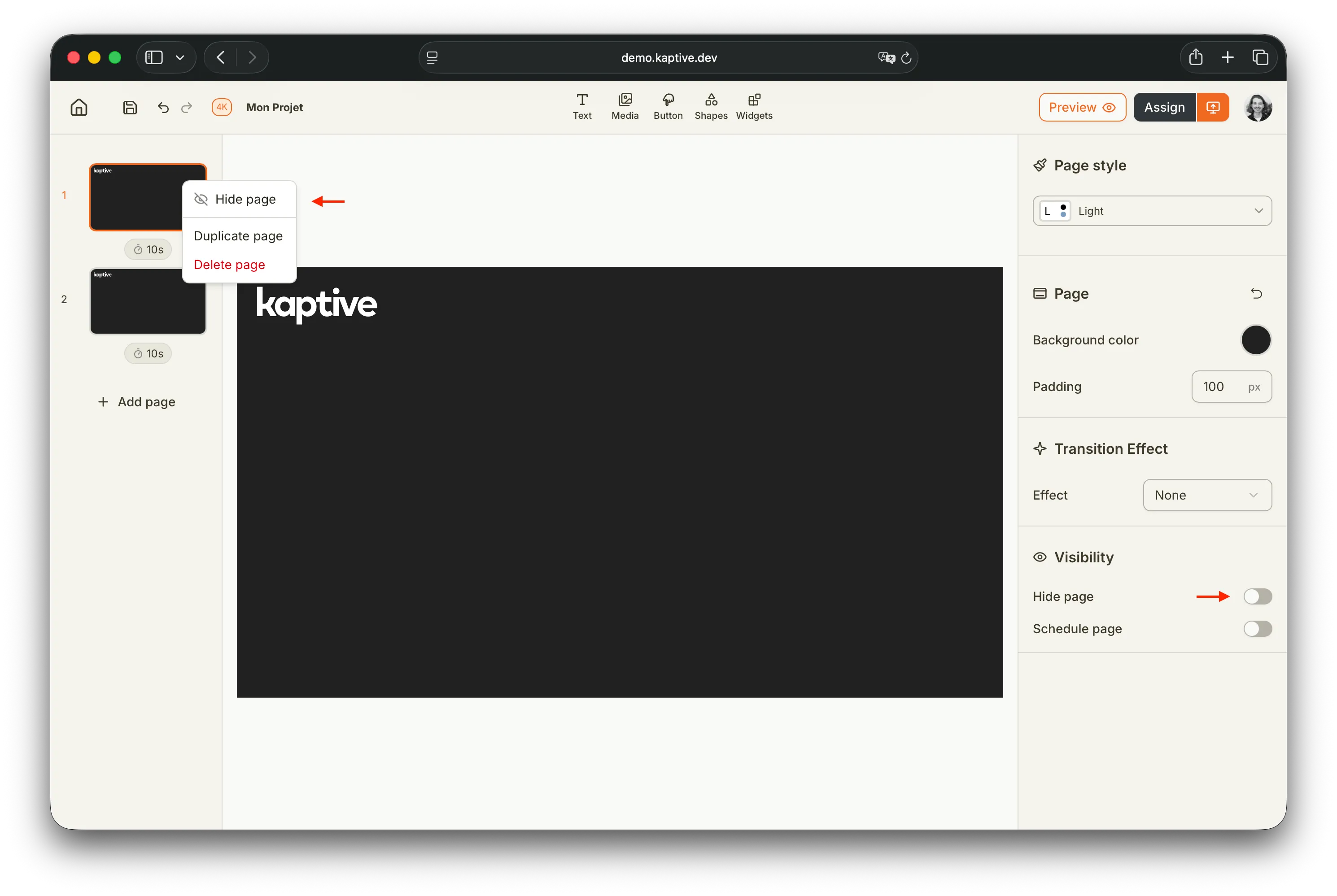
To hide a project page, either right click the page in the left editor pane and select Hide page or select the page and toggle the Hide page toggle in the page properties pane.
Schedule a project page
Section titled “Schedule a project page”When a specific page is scheduled, it is only shown on a player during the scheduled time period. Outside of this time period, the page is hidden and skipped in the playback loop.
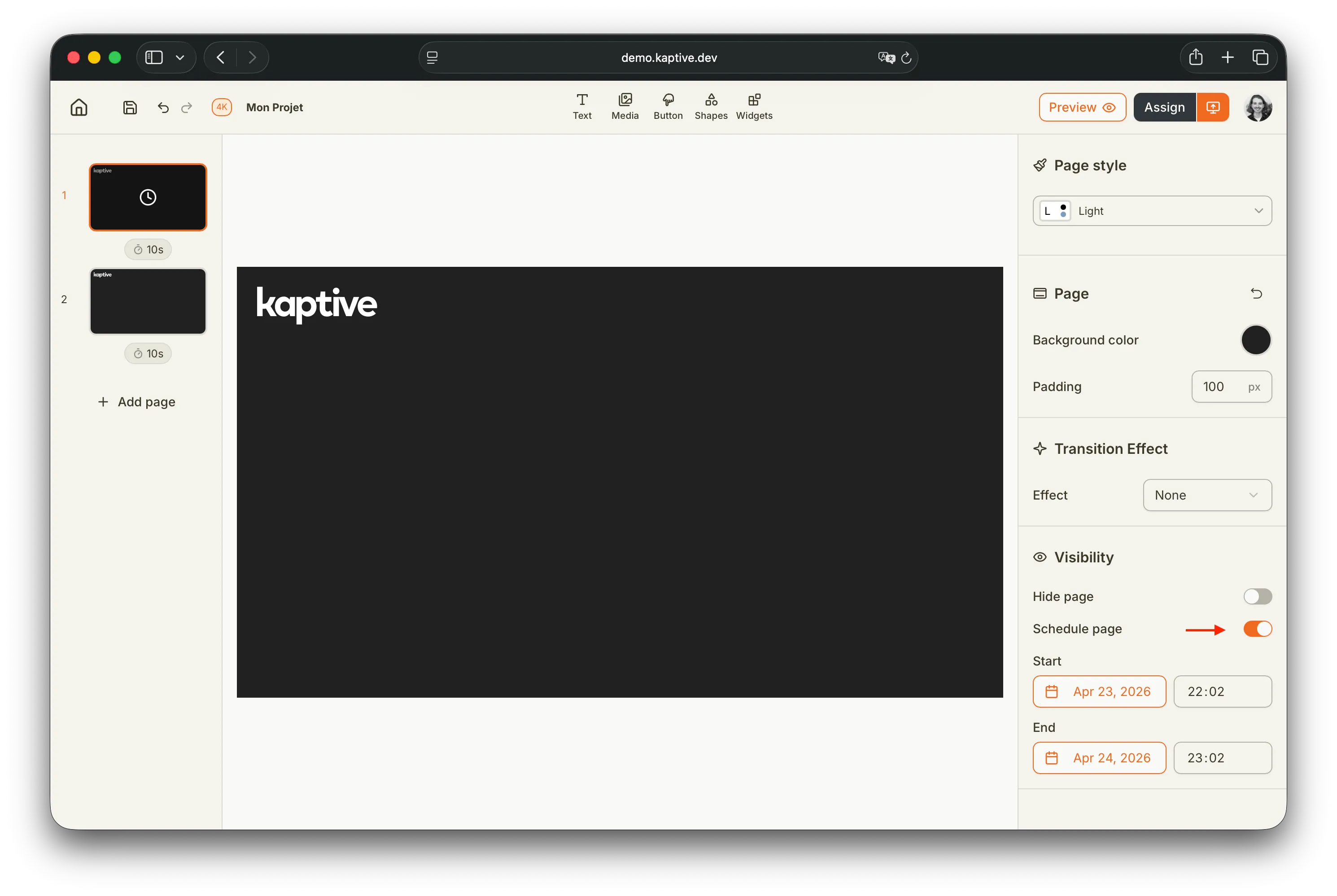
To schedule a project page, toggle the Schedule page toggle in the page properties pane. Then, set the start and end date and time for when the page should be shown. Once published, the page will only be visible on the player during the scheduled time period.